How To Remove Green Eye In An Image

dog with green eye
Green Eye In A Photo

This tutorial will teach you how to remove green eye in pictures. Green eye commonly occurs in dogs and cats. This picture of a dog needs to be edited because the dog’s eyes appear green due to an effect the camera flash has on animals’ eyes. I will use the polygonal lasso tool, the sponge tool, the burn tool and the blur tool.


Step 1: Open Adobe Photoshop and import the image you wish to edit.

Step 2: Use the zoom tool to zoom in closer on the dogs’ eyes.

zoom on dogs face
Zoomed In On The Dogs Face

Step 3: Select the polygonal lasso tool and trace around the green part of the dogs eyes.

tracing the eyes using polygonal lasso tool
The Trace Around The Dogs Eyes Using The Polygonal Lasso Tool

Step 4: Select the sponge tool and set the size to approximately 15 pixels. Make sure the mode is set to desaturate and click over the dogs eyes so the green colour will desaturate.

using the sponge tool to desaturate colour in the eyes
Using The Sponge Tool To Desaturate The Colour In The Eyes


Step 5: Select the burn tool and set the range to shadows and the exposure to 17% and click on the eyes to make them darker.

using the burn tool
Using The Burn Tool To Darken The Dogs Eyes

Step 6: Select the blur tool and set the size to approximately 10 pixels and the strength to 15%. Click and go around the pupils so it will appear smoother and less sharp and jagged.

using the blur tool to smooth out the eyes
Using The Blur Tool To Make The Eyes Appear Smoother

Click here to see our How To Remove Red Eye Tutorial.

Downloading, Installing and Editing fonts in Photoshop

Design Quote from Steve Jobs
In this tutorial you will learn how to download a font from the website "dafonts", install onto your computer, and how to change and style the font using the properties of the Text Tool in Photoshop.


Step one:

Create new file

Creating a new file 

Step Two:

Go to the website “dafont”. And select desired font to download. I have chosen the font called “Elkwood” for this demo.

"dafont.com" Logo


The file will download as a zip file in the download area. Double click to unzip the folder and install the font file. This will then appear in the text section in Photoshop.

Installing of the font 

Step Three:

In Photoshop select the Text tool to create new text.

Text Tool option on Photoshop

Selected the font “Elkwood”. And click on the canvas. This will create a new layer.

Creating a new "Layer" in Photoshop

Step Four:

Enter your desired text. For the demo I am using a quote from Steve Jobs creator of Apple “Design is not what it looks like and feels like. Design is how it works”.

Example of the text used


I am now going to add different character setting using the character and paragraph panels.


Selecting the Character and Paragraph panels to change the text 

By changing the settings in the character and paragraph panels, it allows you to selected different sizes for the font, different colours. It also gives you the option to space out the letter both horizontal (across) and vertical (up and down). I have changed the font size, the colour and both the horizontal and vertical of the text. As shown in the image below.

Different options used in the Character and Paragraph for the text

Step Five:

Effects after changing the settings in the character and paragraph panels.. For this demo I have added a drop shadow to the text. To do this you need to right click on the text layer and a drop bar will appear, here you can select the blending mode to create different effects to the text. The Blending options show in the below image.


Blending Options on the drop down menu


Then I selected to add a drop shadow to the text. I added in different settings as show in the image below. This gives a shadow effect to the text. The sample is not intended to be inspiring! But rather a simple example showing that the text can be edited. Explore the various layers styles to create a text effect that suits your design project.

Setting for adding a Drop Shadow to the text layer in Photoshop

Before:


Original text with no effects in Photoshop


After adding the different effects on the text:


Drop Shadow effect and Character effects done to the text in Photoshop


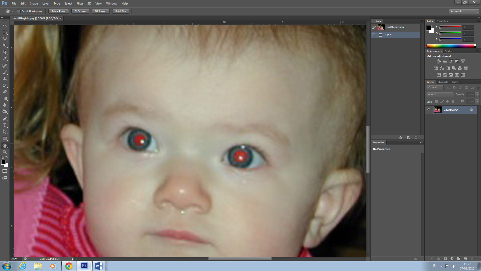
How To Remove Red Eye In An Image

opening image of red eyes
Sample Red Eye In A Photo

In this tutorial I will show you how to effectively remove red eye from an image. The image I am using in this tutorial needs to be edited because the girl’s eyes appear red due to the camera flash reflecting at the back of her eyes. The tools I will use are, the colour replacement tool, the burn tool and the blur tool.


Step 1: Open Adobe Photoshop and import the image you want to edit.

Step 2: Use the zoom tool to zoom in closer on the girl’s eyes.

zoomed in on red eyes
Close Up Of The Red Eyes

Step 3: Make sure the foreground and background are black and white.

choosing colours
Colour Picker For The Foreground


Step 4: Select the colour replacement tool and set the size to approximately 15 pixels. Set the sampling to background swash. Then begin to click and drag on the red part of the eyes.

udsing colour replacement tool
The Colour Replacement Tool In Effect

Step 5: Select the burn tool and set the size to 25 pixels and select the mode “shadows”. Click and drag over the pupils.

using the burn tool
The Burn Tool In Effect

Step 6: Select the blur tool and set the size to 5 pixels and the strength to 15%. Click and drag around the outside of the pupils to make them look smoother.

using blur tool to smooth out the eyes
The Blur Tool In Effect

Click here to see our How To Remove Green Eye Tutorial.

How to use UV Mapping in Blender


Finished UV Mapping

What is UV Mapping?

UV Mapping is a process used in 3D Modelling, to simulate the surface of a 3D object using a 2D image. A 2D diagram or “UV Map” of the 3D Object is created to know where on the image each part of the object is, and where you put a texture on the object. Credit to Darrin Lile for supplying files used for tutorial at www.darrinlile.com

Why use it?

UV mapping is used when you want to put multiple colours/textures onto one mesh. The object is split up into different parts on a map, allowing it to be textured one part at a time.


How-to

Step One:Start up the file with the object you want to UV map or create a new object.

Unmapped mayonnaise bottle

Step Two:Select the Object by right clicking and go into edit mode (TAB). Select the Shading/UV’s tab on the far left by left clicking it.

Shading/UVs panel
Set your selection preference to edges (middle) underneath the stageand select edges suitable to be a seam (normally outer edges or where the shape bends) by Alt+Shift clicking them to get the full edge, and to select multiple edges like so:

Selecting edges of object
Then click “Mark Seam” under UVs in the left toolbar.

Step Three: right click the grey line between the stage and border at the top of the screen and select “Split area"

Split Area


Obviously you don’t need two of the same screen, so in the bottom left of which ever one you want, click the little box shown below and select “UV/Image editor”.

Editor Type select

This will make the stage look like this:

UV Editor area
if you use the same file as me this window will already be open and you won't have to do this part.

Step Four:in the stage that still shows the object, press A until everything is highlighted in yellow. Then press U and click “Unwrap” different parts of the object (separated by the seams) will then appear in the second stage.

UV Map of an object in Blender
UV Map
You then click the UVs tab underneath the UV editor stage (right side of image above) and click “export UV” layout and save it where you want.

"UVs" menu

Step Five: open the .png you just saved of the UV map in Photoshop (or MS paint) using File>Open and finding the file. 

file open

Start a new layer, underneath the UV map’s layer and paint the shapes whichever way you want. To know which shape you’re painting, go back into blender, change the edge selection to face selection and in the stage displaying the object select a face. It will then highlight in the UV editor stage, letting you know which part is where on the UV map. When painting the object in Photoshop it is not necessary to paint outside the shapes of the UV map, and if you do it will not affect the texture when it is mapped onto the object at all. when saving the file make sure that the colour layer is above the UV map layer. The end product should look something like this:

UV Map Layer
finished painting of map

Step Six:After you save over the UV map .png with your newly edited one, go back into blender. Make sure everything is highlighted in the object stage and if it isn’t hover over it and click A. change “blender render” to “cycles render” above the stage next to the version then  in the right toolbar click the material bar and click “new material” as shown below.

Adding a Material

Then, on the stage that we changed to the UV editor, click the little box we used to change it again and select “Node editor” which will give you the screen below.

Node Editor

Click “Add” underneath this new stage, and select Texture>Image texture. Connect the yellow colour circle on the new box to the yellow colour circle on the diffuse box. Then click open and find the new UV map we created.

image added to Node Editor

With the correct lighting and camera placement, when you view the rendered image by pressing F12, you should come out with something like this:

finished UV mapped object

As you can see from the preview above, UV mapping allowed me to use multiple colours and textures for this bottle of mustard including the yellow, red and even the texture of the label. This can be used from something as simple as this static mesh, to an entire character for a game. Enjoy practising it out.

How to use Boolean Modifiers in Blender

Four types of Boolean modifiers shown
Four types of Boolean Modifiers on display.

In this quick tutorial you will be learning how to use the Boolean modifier in blender and what each operation does, but first;

What is a Boolean modifier?

A Boolean modifier is a tool within blender which allows you to use two different shapes to affect each other in a number of ways to create new shapes. It allows you to combine, subtract and intersect the two shapes . These three options give you four different types of shapes (as you can have an A-B or B-A subtraction) you can make using the Boolean modifier as shown above.


Step One:Open up a new file.

New file


Step Two:Add a UV sphere (Shift + A and find it in meshes) to the centre of the cube. Scale it up (S key) to look like below. Then shift and right click the cube so you have both of them selected and then duplicate them three times (Shift + D).

Four copies of the sphere inside the cube


Step Three: Select the first cube by right clicking and click the wrench in the toolbar on the right. After that click “Add modifier” and select Boolean (shortcut for Boolean in this menu is N so you can press that to save you from looking through all the options).

How to bring up the Boolean Modifier menu


Step Four:The first modifier is union. Select “union” under operation then under “object” select which ever sphere is inside the cube. You can find out the name of the sphere by right clicking it on the stage. The name will appear in the same place it says “Cube.003” below. If you are following this tutorial exactly, then the shape numbers will correspond e.g. Cube.003 will have Sphere.003 inside it and Cube.001 will have Sphere.001 inside etc. You then hit apply and can now delete the sphere by right clicking it and pressing X and clicking delete. The shape will look like the same as before but will have no internal geometry. (You can see this by hitting the Z button to go into wire frame mode).


No internal geometry when union Boolean operation is used.


Step Five:Select the next cube by right clicking and do all of the same things but this time instead of selecting “Union” in operation select “difference”. Out of the three different operations this is the only one that can have two different types of shapes made from it, depending on which shape you apply the modifier to. This operation takes one shape away from another. When you click apply and delete the sphere the shape should look like this:

Difference A Boolean operation shown

Step Six:Again, we will be doing the same thing, but this time, with the next two shapes, select the sphere. Apply the difference operation and delete the cube and the result should be the exact opposite as the first, shown below:

Difference B Boolean operation shown


Step Seven:The final operation is intersect. Select the cube and follow the same procedures as before but under the operation drop box select intersect. Apply and delete the sphere and the shape left over should be the one shown below. This operation only shows geometry where the two shapes' geometry were on top of one another.

Intersect Boolean operation shown

If done correctly, you will have the four shapes on your stage as shown at the top of the tutorial. These modifiers are used to create shapes which are otherwise not available to use through the meshes given by default. If you feel confident in knowing how to apply the Boolean modifier play around with it. you can use different shapes, place them differently, maybe even use more than two shapes. The possibilities are endless.